Tag: Windows 10

  • Windows 10 Update Hanging

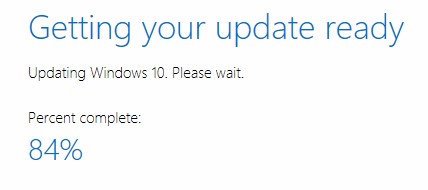
    Got a Windows 10 machine that just hangs or errors when upgrading? Especially if it is to version 1903 (May 2020 update).
    So you’ve tried the usual things:

    Still struggling? Chances are it is because IIS is stopping you progressing.

    Run control.exe, choose Programs and features, click the link on the left “Turn Windows Features on or off” and uninstall IIS.
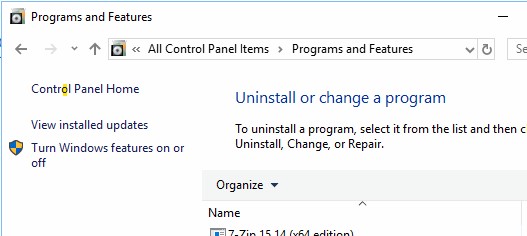
    Can’t uninstall IIS? Open c:\Windows\System32\inetsrv\config\applicationhost.config.clean.install in notepad and copy the contents to the clipboard. Now open ApplicationHost.config and delete the contents. Paste from the clipboard and save the file. Now uninstall IIS and then see if your upgrade works.

    Rather than try “Windows Update”, download and install the update directly using Windows 10 Update Assistant

    Still strugging? Try this script or whichever bits you prefer to borrow

    @echo off
    echo Delete Mechine Keys
    del C:\ProgramData\Microsoft\Crypto\RSA\MachineKeys*.* /s
    pause
    echo System File checks
    dism.exe /Online /Cleanup-image /Restorehealth
    sfc /scannow
    pause
    echo Stop some services
    net stop bits
    net stop wuauserv
    net stop appidsvc
    net stop cryptsvc
    echo stop any services that didn't stop
    net stop bits
    net stop wuauserv
    net stop appidsvc
    net stop cryptsvc
    pause
    Del "%ALLUSERSPROFILE%\Application Data\Microsoft\Network\Downloader*.*"
    rmdir %systemroot%\SoftwareDistribution /S /Q
    rmdir %systemroot%\system32\catroot2 /S /Q
    pause
    sc.exe sdset bits D:(A;;CCLCSWRPWPDTLOCRRC;;;SY)(A;;CCDCLCSWRPWPDTLOCRSDRCWDWO;;;BA)(A;;CCLCSWLOCRRC;;;AU)(A;;CCLCSWRPWPDTLOCRRC;;;PU)
    sc.exe sdset wuauserv D:(A;;CCLCSWRPWPDTLOCRRC;;;SY)(A;;CCDCLCSWRPWPDTLOCRSDRCWDWO;;;BA)(A;;CCLCSWLOCRRC;;;AU)(A;;CCLCSWRPWPDTLOCRRC;;;PU)
    pause
    echo Re-register DLLs
    cd /d %windir%\system32
    regsvr32.exe /s atl.dll
    regsvr32.exe /s urlmon.dll
    regsvr32.exe /s mshtml.dll
    regsvr32.exe /s shdocvw.dll
    regsvr32.exe /s browseui.dll
    regsvr32.exe /s jscript.dll
    regsvr32.exe /s vbscript.dll
    regsvr32.exe /s scrrun.dll
    regsvr32.exe /s msxml.dll
    regsvr32.exe /s msxml3.dll
    regsvr32.exe /s msxml6.dll
    regsvr32.exe /s actxprxy.dll
    regsvr32.exe /s softpub.dll
    regsvr32.exe /s wintrust.dll
    regsvr32.exe /s dssenh.dll
    regsvr32.exe /s rsaenh.dll
    regsvr32.exe /s gpkcsp.dll
    regsvr32.exe /s sccbase.dll
    regsvr32.exe /s slbcsp.dll
    regsvr32.exe /s cryptdlg.dll
    regsvr32.exe /s oleaut32.dll
    regsvr32.exe /s ole32.dll
    regsvr32.exe /s shell32.dll
    regsvr32.exe /s initpki.dll
    regsvr32.exe /s wuapi.dll
    regsvr32.exe /s wuaueng.dll
    regsvr32.exe /s wuaueng1.dll
    regsvr32.exe /s wucltui.dll
    regsvr32.exe /s wups.dll
    regsvr32.exe /s wups2.dll
    regsvr32.exe /s wuweb.dll
    regsvr32.exe /s qmgr.dll
    regsvr32.exe /s qmgrprxy.dll
    regsvr32.exe /s wucltux.dll
    regsvr32.exe /s muweb.dll
    regsvr32.exe /s wuwebv.dll
    pause
    echo Restart services
    netsh winsock reset
    netsh winsock reset proxy
    net start bits
    net start wuauserv
    net start appidsvc
    net start cryptsvc
    echo Start any services that didn't start
    net start bits
    net start wuauserv
    net start appidsvc
    net start cryptsvc
    echo Now disable IIS under Control Panel - Programs and FEatures - Turn Windows Features off
    pause
    echo Restart then run the Update Assistant Tool (WindowsUpdateDiagnostic.diagcab)

    If this doesn’t help, you can always: https://www.kapilarya.com/how-to-repair-windows-10-using-in-place-upgrade

  • RDNSS and IPv6

    When the IPv6 RFCs were completed to a point that the working groups were happy the protocol was ready, it had been deployed in limited ways and by engineers who could deal with anything that was a little tricky or inconvenient. When mass market adoption started and new users started playing with it, there was a need to make a few elements of it simpler. In November 2010, the RFC describing RDNSS was published and it basically fixes the kludge of using DHCP to do some stuff but RA to do other stuff. (In 2017, it was superseded by RFC 8106.)

    Put it simply, IPv6 didn’t use DHCP to dish out IP addresses as there was a mechanism called SLAAC. But DHCP also sends out things like which nameservers to use, so you kinda had to use DHCP anyway. You could use it either stateless or stateful:

    • Stateless – just advertise things like DNS nameservers and other options needed for things like IP phones, don’t dish out IP addresses to clients and don’t remember that you have spoken to the client that asked for the info
    • Stateful – act just like DHCP does for IPv4. Dish out addresses, options, nameservers and keep a note of who is what and run a lease timer for everything

    Stateless is best in my view as it allows the proper use of SLAAC and removes the overhead of an active IP database. Stateful feels very “old fashioned” in the IPv6 world. But still needing DHCP for DNS servers is an obvious kludge. I mean, why can’t the RA messages from the router send out all that stuff?

    Well. RDNSS did just that. Problem solved! Well… er.. not quite because not everybody supported it. Microsoft finally did in 2017 in build 15063. Also, if DHCPv6 exists, the RDNSS advertisement will be quietly ignored. In Centos, the reverse is true.

    So my advice is to enable BOTH for the moment, until there is a consensus, though that will be in favour of RDNSS for sure.

    So, as I already threw a post together on IPv6 on Juniper SRX, I might as well cover the RDNSS bits as well. So here is my example config to cover both DHCPv6 and RDNSS on the same interface and cover all the bases:

    This example uses 2a01:a000:110::/64. First the IPv6 build and SLAAC:

    security {
       forwarding-options {
           family inet6 {
               mode flow-based
               }
           }
       }
    }
    interfaces {
        fe-0/0/0  {
           description "LAN Interface";
           unit 0 {
             family inet6 {
               address 2a01:a000:110::1/64;
             }
           }
        }
     
    protocols {
         router-advertisement {
             interface fe-0/0/0.0 {
                 prefix 2a01:a000:110::/64;
                 link-mtu;
             }
    }

    At this point there are no DNS nameservers being advertised to clients, so let’s add DHCPv6 with the “O” flag set to make it stateless and use a token so clients know when we send any updates in future that it is us doing it. Note we don’t configure an address pool because DHCP is stateless.

    system {
        services {
            dhcp-local-server {
                  dhcpv6 {
                      reconfigure {
                          token 8ysIU9E32k8r;
                      }
                     group mygroup {
                         overrides {
                             interface-client-limit 200;
                              process-inform {
                                   pool mypool;
                              }
                           }
                           interface fe-0/0/0.0;
                       }
                   }
              }
    }
    access {
          address-assignment {
              pool mypool {
                  family inet6 {
                      prefix 2a01:a000:110::/64;
                      dhcp-attributes {
                          maximum-lease-time 120;
                          grace-period 3600;
                          dns-server {
                              2a01:a000:2::11;
                              2a01:a000:2::14;
                          }
                      }
                  }
              }
    }
    protocols {
          router-advertisement {
              interface fe-0/0/0 {
                  other-stateful-configuration;
                   prefix 2a01:a000:110::/64;
               }
      }

    You can test that all works using a PC on the LAN. When you are happy, let’s put RDNSS on as well:

    protocols {
        router-advertisement {
           interface fe-0/0/0 {
                 dns-server-address 2a01:a000:2::11 {
                     lifetime 100;
                 }
                 dns-server-address 2a01:a000:2::14 {
                     lifetime 200;
                 }
            }
        }
    }

    If it is working, you’ll get this sort of behaviour in response to netsh :

    C:\Users\simkin>netsh int ipv6 show dnsservers

    I recommend using different DNS servers for DHCPv4, DHCPv6 and RDNSS so you can try different combinations and see what gets its addresses from where.

    Don’t forget that a client running dual stack will log DNS servers in IPv4 and v6 and can keep one or both sets and resolve accordingly. This behaviour will rely on local system policy. By default, Windows will prefer IPv6 over IPv4 and then prefer DHCPv6 over RDNSS. To fix your preferences, use the registry key:

    HKEY_LOCAL_MACHINE\SYSTEM\CurrentControlSet\Services\Tcpip6\Parameters\
  • Transfer Windows 10 to a New Hard Disk without additional software

    It can be done!
    Things you will need:

    • Beg, borrow or steal an external Hard Drive that you can store a backup of your current drive
    • A blank CD (yes! CD-R is fine) or USB key

    Backup:

    1. Connect the external USB Hard Drive.
    2. Hit the Windows Key and type “System Image” choose “Backup Settings” when it suggest it
    3. Under “Looking for an Older Backup?” click “Go to Backup and Restore (Windows 7)”
    4. In the left-hand menu choose “Create a system image”
    5. Choose the location of your external USB drive and let the image be created. It will take a while….
    6. When it completes it offers to create a Windows Repair disk. Do it! (use the CD-Rom or USB Key)


    Shutdown

    1. Unplug your old hard drive
    2. Plug in your new one
    3. Boot from the Repair disk
    4. Under Advanced, choose Restore from System Image. It will take a while….
    5. Remove the External drive, Eject the Windows Repair disk/key

    Reboot!
    Note: If you need to resize your hard disk partition, you might need some software for that depending on your disk type. Rather than buy something look up “Ultimate Boot CD” and use one of the free tools on that.
     
    Note:
    Sometimes the recovery disk gets you to a screen that reads “Choose your keyboard layout” and doesn’t respond to you beating the keyboard. Your best bet is to try a different boot method. Go here https://www.microsoft.com/en-gb/software-download/windows10 and download the media creator to make a USB stick to install Windows on another computer. When you get to the screen with the language selection, choose the REPAIR link and follow it from there.